Showing posts with label Computer Tips. Show all posts

Wednesday, August 22, 2007

Miscellaneous

Kris asked about doing a post on overwintering cannas/dahlias. Been there, done that, Kris. Try this one from last October.

And here is a miscellaneous tip that I just used on my own blog and thought perhaps it would be beneficial to others. Do you ever find yourself on a page other than the homepage of a blog and you can't find your way back to the beginning? This happens all the time when you search for something and it takes you to the blog post for your search.

Well, if you just go up to your URL address bar and highlight everything after the blogspot.com (click on it to make it big enough to read)


Here is a close up of the address bar and what to highlight.


Hit your "delete" key.

Hit enter.

Voila! You are back to the home page and you didn't have to scroll about trying to find the "home" link.

Now that you have read through all of that, forget it all!

Because Dianne has left a comment with a much easier way to do the same darn thing:
... if you just click the banner area (tried it on your page) you should get back to the most recent blog entry... Thanks, Dianne! I will be using that tip for sure!

Don't forget it entirely--If you are just on a regular web site, not a blog, my tip will work. :)

Look at these p*illows.


They are from a d*esigner whom I've seen on H*G*T*V. Guess how much they cost?

#1 - $225
#2 - $250

Where do these people get such an elevated opinion of self worth? Any person with just a minimal bit of sewing knowledge could make these!

Thursday, April 12, 2007

Keep Page Open While You Look at Links

Doesn't it frustrate you when you click on a hyperlink (like one of links in red on the post below) to look at the picture. Then you hit the X to remove the picture to go back to reading the post and the blog is gone?

I never did figure out how to make a hyper link open in a new window. I found some code, but when I inserted it, it said it was not allowed.

So here is the next best thing. Right click on the red link and click "open in a new window". That way you can view the linked info, and still stay in the blog when you X it out. Once you get into the habit of doing this, it will save you a lot of frustrated surfing.

Thursday, April 5, 2007

What are the Space Limitations on Blogger?

Wandering Chopsticks asked me a question in a comment below about how much space you can use on Blogger. She was concerned because she had already used 33% of her space.

That's a great question, Chopsticks.

My understanding is that there is no limit...however, there is a limit to how much you can put on one page. The limit is 1 MB.

If you have your opening page set up to show a lot of posts, you could run out of space for that page. Luckily, it's very easy to correct.

Just go into "Settings", then "Formatting" and set a lower number of posts to show on the front page. Mine is set at 7.


Have you ever gone to a blog without music or video, yet it took a long time to load?The odds are pretty good that the blogger was allowing an entire month (or even more!) of posts to load on the front page. It can be very frustrating for readers with a slow connection.

Chopsticks, where did you see how much you have used?

Was it while you were posting like this? (you may have to click on it to read)


Because I think this just shows what is left for that page.

I am not 100% positive about all of this so if anyone knows more, please jump right in and give us the scoop!

Thursday, June 8, 2006

Make the Type Bigger

To make the type bigger when reading blogs (or anything else for that matter) hold down the "Ctl" key and put your finger on the wheel in the center of your your mouse. You can make the print bigger or smaller depending on which direction you push the wheel.

Of course, you must have a mouse with the wheel in the center to do this.

Tuesday, May 30, 2006

My 2¢

Or how to make the cent sign appear in your post.

I just had to look up how to do this for another purpose, so I thought I would post it just in case someone else wants to know how.

Just hold down the Alt key and hit 0162 from the keypad, not the numbers on top of your keyboard. I don't believe it will work if you use the top ones (at least it won't on my computer)

Wednesday, March 29, 2006

Degree Sign

We are having beautiful spring weather today (mid 50ΒΊ's).

A big thanks to Kerri who posted a handy tip on how to get the degree sign. Kerri, I had to stop in the middle of this post and go to your blog to find the tip. Even though I wrote it on a scrap of paper on my 'puter desk, I've already lost it. I can't tell you how many times I've needed that sign and could not remember how to do it.

Here is how it's done:
Alt+0176
use the key pad


I went out after work and sprayed all of the tulips with Hinder. Hopefully, the deer won't eat them.

I thought I might go out and begin raking and cutting down, but, on second thought, I decided to just make a nice cup of Cafe Vienna and relax.

I think I will do a little sewing now since I have not done any for about a week.

Thursday, February 23, 2006

Caps Lock Warning

I haven't done much in the post-worthy category the past two days.

So I thought I would post this computer tip that I found in hopes that one or two of you will also find it useful.

Have you ever been typing along in Word and looked up and found you had been typing in all caps? Very irritating, isn't it?

What you did was hit the Caps Lock key when you really wanted to hit the Shift key to capitalize the first letter. It happens to me all the time.

Now when it happens I hear a sound to alert me to the fact that I hit the All Caps key by mistake.

You, too, can turn on an alarm sound that alerts you whenever you press Caps Lock, Num Lock, or Scroll Lock.

If you are using Windows XP, here's how:

1. Click Start, then Control Panel.

Make sure you are in the Classic View. It should look like this:


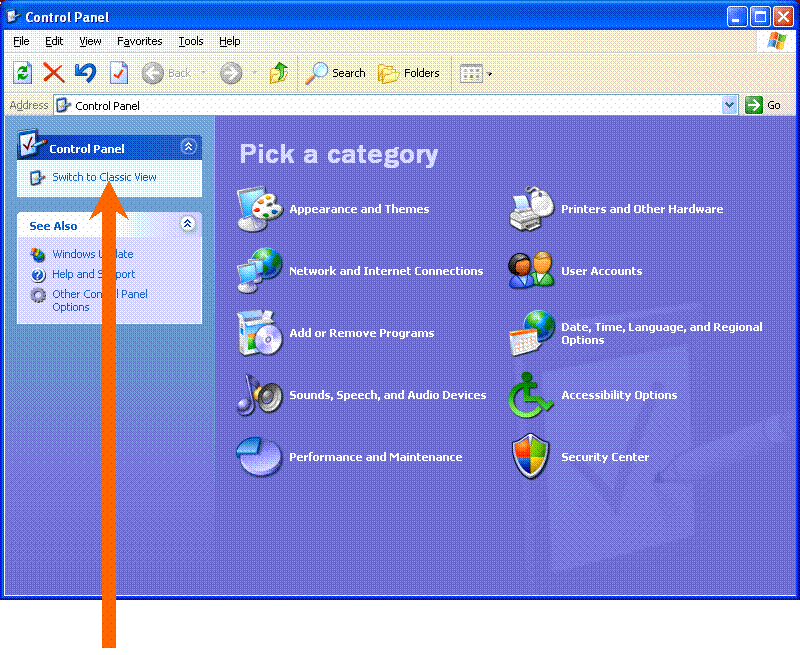
If you are in Category View, your screen will look like this:


You need to change it by clicking where it says "Switch to Classic View".

Once you are in classic view:

2. Double-click the Accessibility Options icon.

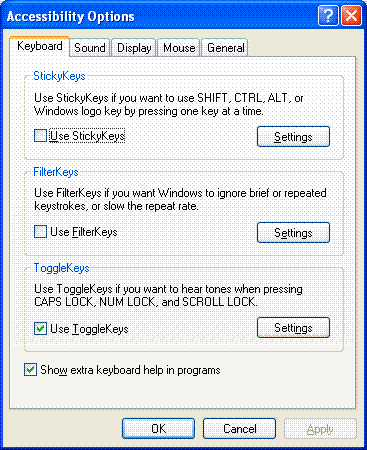
3. Click the Keyboard tab and then click to put a
check mark in the Use ToggleKeys box.

(I also have the bottom one checked, but you don't need that.)


4. Click OK.

Now hit the Caps Lock key and you should hear a beep.

Neat, huh?
Related Posts Plugin for WordPress, Blogger...